

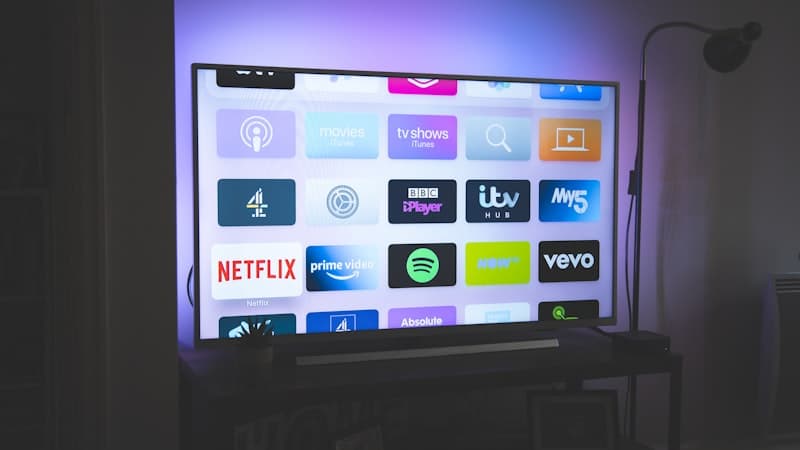
TL;DR: The way you install a VPN on a TV depends on its platform, and that's the first thing to find out. On Android TV and Google TV you install an app straight from Google Play. For Apple TV, Samsung (Tizen), and LG (webOS) there's usually no native app — leaving a VPN on the router (which protects the whole home at once), sharing internet from a phone, or an Android box over HDMI. A VPN on your TV encrypts traffic, hides your IP, and opens access to streaming without regional restrictions.
Why put a VPN on your TV
A modern Smart TV is a full-fledged networked device with apps, accounts, a microphone, and a constant internet connection, so the same privacy considerations apply to it as to your phone. Many models use automatic content recognition (ACR): the TV takes a "fingerprint" of what's on screen, matches it against a database, and sends the result to the manufacturer, who often sells that data to advertising partners. Combined with launch history, search queries, and your IP address, it adds up to a detailed portrait of a household.
A VPN doesn't turn off ACR — that's a function of the TV itself, and you should disable it separately in privacy settings along with personalized ads — but it severs one important channel: the link between all this activity and your real IP. Traffic travels over an encrypted channel, and your provider can't see what the TV is sending. Beyond privacy, a VPN does two things: it replaces the IP that streaming services use to determine your region (more in our guide on how to hide your IP address), and it helps get around restrictions at the network level — a topic that overlaps with unblocking websites.
An important caveat about streaming: bypassing geographic restrictions may conflict with a particular service's terms of use. A VPN itself is legal in most countries — this is a question of the platform's rules, not the law. We describe the technical possibilities; the decision on how to use them is yours.
Why a VPN is harder to install on a TV than on a phone
On a smartphone it's simple: install the app from the store, tap a button — done. With TVs it's harder, because of the variety of platforms, each of which restricts app installation in its own way. Android TV and Google TV are essentially Android, so you can install full apps, including a VPN, straight from the store. Apple TV runs tvOS: it has a store, but for a long time it lacked full VPN clients, and the situation depends on the specific service. Samsung Tizen and LG webOS are closed proprietary platforms onto which third-party VPN apps usually can't be installed at all. Budget TVs on unknown firmware are easier to protect at the network level than with an app.
How to find out your TV's platform
Look in settings under "About" or "System" — the OS version is listed there. The brand is also a hint: recent Sony, Philips, TCL, and Xiaomi TVs are most often on Android TV or Google TV; Samsung is on Tizen; LG is on webOS; the standalone Apple TV box is on tvOS. If the main menu has a Google Play store, you have an Android platform and the simplest method applies. If there's no Google Play but there is a brand's own store, the platform is closed, and you need the router, sharing, or box method.
Four ways to connect a VPN to your TV
The methods differ in what exactly they protect and how much hassle they involve. An app on the TV and phone sharing protect only the TV itself; the router covers the whole home at once; a box adds a VPN to one specific screen but requires buying a device. In short: if Android TV is at hand, install the app; if you want every device protected and have a suitable router, set up the router; if the router is someone else's or can't do VPN and you need something mobile, get a box or share from your phone.
Method 1. An app directly on the TV. The simplest option, but available only for Android TV and Google TV (and boxes based on them). You open Google Play on the TV, find your VPN's app, log in, and connect — just like on a smartphone. The VPN turns on with one button on the remote, and you can change country on the fly during playback. For Apple TV, Samsung, and LG this method is usually unavailable.
Method 2. Sharing from a phone or computer. If you can't install an app, you turn on the VPN on your phone or laptop and share internet to the TV via a hotspot or cable — the TV reaches the network through the intermediary device's protected channel. It suits almost any TV and needs no hardware, but the intermediary device must stay on and nearby, it drains the battery, and mobile data runs out fast when watching high-quality video. Good as a situational solution in rented housing or a hotel.
Method 3. A VPN on the router. The most universal method for the home: one setup protects every device on the network — TV, phones, laptops, speakers. The TV doesn't know it's working through a VPN — it simply goes online while the router encrypts the traffic. The downside: you need a router with VPN-client mode (not all support it), the setup is more complex, and you change country in the router settings. Many routers let you keep some devices outside the VPN — for example so a banking app on your phone uses your home IP.
Method 4. A ready-made VPN router or Android box. For those who don't want to fiddle with setup: a router with built-in VPN support or a separate Android TV box with a VPN app, connected over HDMI. A box adds a VPN to any screen — even an old "dumb" TV becomes smart — and gives convenient server switching from its own remote. The only downside is the extra cost of the device. It's the most flexible option for Apple TV, old TVs, and someone else's network where you can't configure the router.
Which method for which TV
| TV platform | App on the TV | Best method |
|---|---|---|
| Android TV / Google TV | Yes, from Google Play | App directly on the TV |
| Apple TV (tvOS) | Depends on the service | VPN on the router or Android box |
| Samsung (Tizen) | No | VPN on the router or phone sharing |
| LG (webOS) | No | VPN on the router or phone sharing |
| Budget TV / unknown OS | Usually no | VPN on the router or Android box |
| Old "non-smart" TV | No | Android TV box over HDMI |
Step by step: installing a VPN on Android TV
For most modern TVs this is the most common scenario:
- Open the Google Play store on your TV.
- Search for your VPN service's app by name and install it.
- Launch the app and log in — enter the login and password with the remote, or more conveniently via a companion app on your phone or by authorization code.
- Choose a server country, tap "Connect", and wait for the connection to establish.
- Open the streaming app you need and use it as usual.
If your VPN's app isn't in the store on the TV specifically (not every service has an Android TV build), switch to the router or sharing method. The login logic is the same as in our guides on how to set up a VPN on Android and how to set up a VPN on iPhone, and the phone app is exactly what you'll need for sharing.
Step by step: a VPN on the router for Apple TV, Samsung, and LG
Where there's no native app, the main path is a VPN on the router. The exact menu items depend on the model:
- Make sure the router supports VPN-client mode (stated in the specs or firmware). This is not the same as a "VPN server on the router" — for our task you need the client. Support is more common on mid- and high-range models, or appears after installing alternative open-source firmware.
- Open the router's web interface at its address (usually on the label underneath) and log in.
- Find the VPN-client section and enter the parameters from your VPN service: server, protocol, keys, or a ready-made configuration. Modern WireGuard is preferable for streaming speed.
- Save the settings, activate the connection, and restart the TV so it reconnects through the VPN.
- Check that the TV reaches the internet and your IP matches the chosen country.
If the router can't be a VPN client, the simplest workaround for Apple TV and old TVs is a separate Android box with a VPN app: it takes on protecting the connection, and the TV just shows the picture from its HDMI output.
Checklist before setting up
- Find out your TV's operating system (Android TV, tvOS, Tizen, webOS) — the method depends on it.
- If you have Android TV — check whether your VPN's app is in the store on the TV specifically.
- If there's no app — find out whether your router supports VPN-client mode.
- Choose a service with servers in the country you need and stable speed — this is critical for video.
- Make sure the service has DNS-leak protection, otherwise your real region may "leak" around the tunnel — how to check is covered in our piece on DNS leaks.
- For the sharing method, keep the phone or laptop charged and near the TV.
- After setup, check your IP and region to confirm the VPN is actually working.
- Check the streaming service's terms if your goal is a foreign catalog.
Checking the result deserves its own step: in a browser on the TV (or on a device in the same network with the router method), open any IP-lookup service and confirm the address and country shown match the server you chose, not your home provider. If the country is right but streaming still serves the local catalog, a DNS leak around the tunnel is usually to blame — that's the first thing to test. Don't rely on the "VPN icon is on": the indicator confirms a connection but doesn't guarantee that all traffic really goes through the tunnel.
For the big screen, video is the most speed-demanding task, so the modern WireGuard protocol is preferable: it's fast and lightweight, whereas a slow or distant server causes buffering. If the TV and router are in the same room, a wired Ethernet connection is steadier than Wi-Fi and removes some pausing problems on top of the small delay the VPN itself adds.
Conclusion
A VPN on your TV is doable, but the method is dictated by the platform: Android TV means an app, Apple TV/Samsung/LG means a router or Android box, and phone sharing works as a temporary solution for any screen. Keep the boundaries in mind: a VPN encrypts the channel and replaces the IP, but it doesn't turn off built-in telemetry such as ACR (that's done in the TV's settings) and doesn't hide you from a streaming service you're logged into. It also can't guarantee a foreign catalog — services recognize and block some VPN addresses.
If you're looking for a simple, affordable VPN that also covers your phone and tablet and works for the TV via sharing or a box — LiMP at 100 ₽/month gives encryption with no logs on iOS and Android (including Android TV boxes) using a modern protocol. One account is enough for both pocket devices and the big screen. See the terms on the pricing page.
Frequently asked questions
Can I put a VPN on a Samsung or LG TV?
No, third-party VPN apps can't be installed from the store on the closed Tizen and webOS platforms. You can only protect such a TV at the network level: set up a VPN on the router, share internet from a phone with the VPN on, or connect an Android box over HDMI.
Will a streaming account paid for in another country work through a VPN?
A VPN changes your visible IP and the region of the request, but it doesn't change the country of your billing account. The service still sees which account you're logged into and ties access to that, not to the IP. So the catalog may differ from what you expect, and the geo-bypass itself is worth checking against the service's terms.
How many devices will one subscription protect?
It depends on your service's limit on simultaneous connections. But with the router method that doesn't matter: the router establishes a single tunnel and passes all home traffic through it, so the TV, phones, and speakers count as one connection from the VPN's side.
Do I need a separate "TV plan"?
No. For a home TV you don't need the most expensive plan — you need a stable, affordable one that also covers your phone and tablet. If you choose sharing or an Android box, the same app on the phone or box is enough; no separate subscription is required.
Does a VPN slow down streaming on a TV?
Any VPN adds a small delay, but with a modern protocol like WireGuard and a nearby server, the speed drop is usually unnoticeable for video. Noticeable buffering more often points to a server that's too far or overloaded, or to weak Wi-Fi — for the big screen, speed matters more than for ordinary browsing.
Can I carry a VPN box with me when traveling?
Yes, a compact Android box with a VPN app installed is a handy option for hotels and rented housing where you have no access to a stranger's router. Connect it to the TV over HDMI, log in to your account, and watch your usual content over the protected channel without configuring someone else's network.