

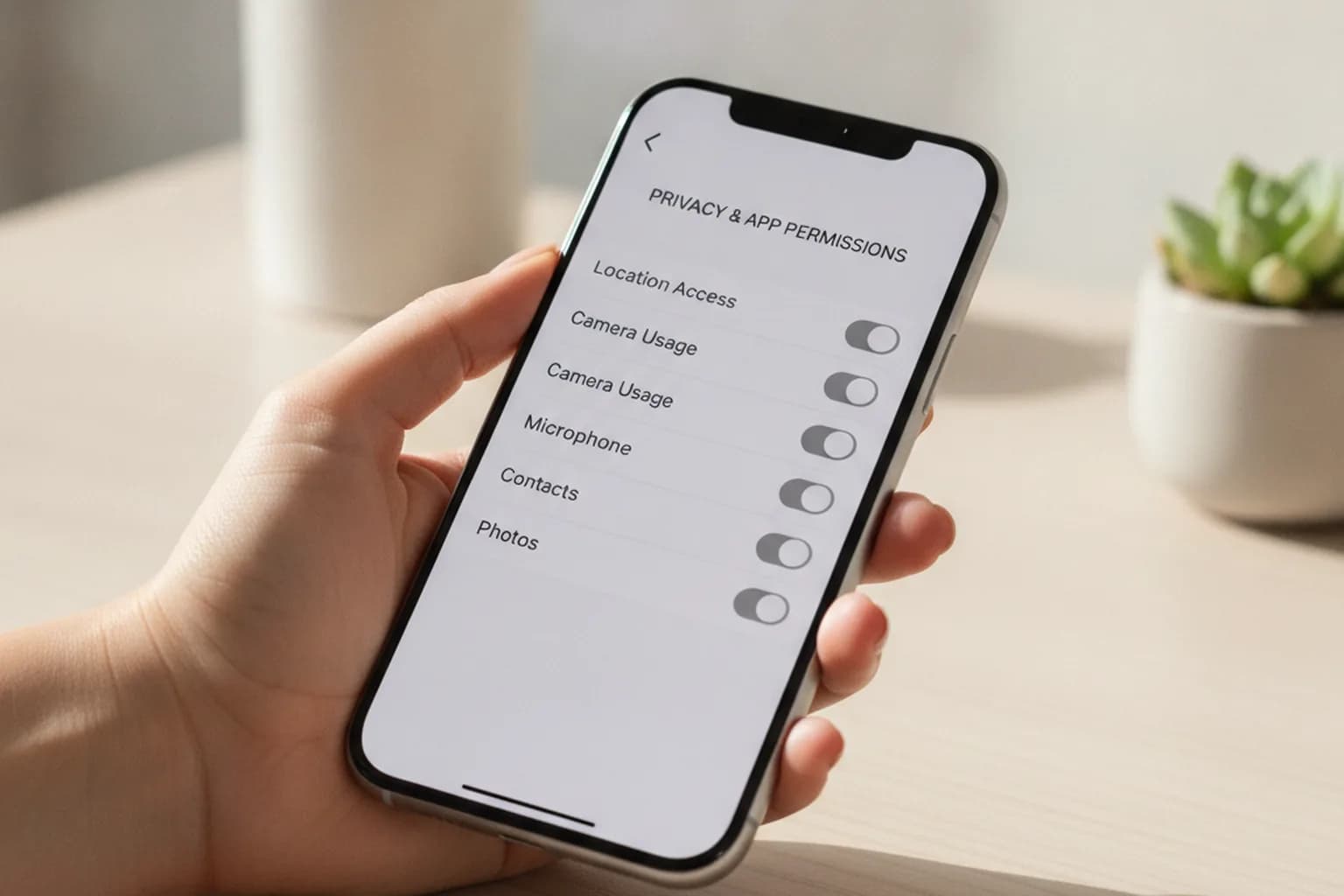
In short: Permissions are the access an app gets to your camera, microphone, location, contacts, SMS, storage and other data. The danger is not a permission itself but a mismatched one: a flashlight has no business reading your contacts, and a game has no reason to touch your SMS. Review what you have already granted, revoke anything unneeded in your phone settings, keep location on while-in-use only, and allow camera and microphone solely where they genuinely work. A VPN covers a different layer — it hides your traffic from your provider and the Wi-Fi owner, but it does not control what an installed app sees on the device itself. You need both.
What app permissions are
When you install an app, by default it can do almost nothing: both Android and iOS keep sensitive data behind separate doors. To reach your camera, microphone, location, contact list or files, an app must ask for permission — and you can allow or deny it.
This model exists for your privacy: it gives you control over who learns what about you. The catch is that prompts are frequent, they pop up at awkward moments, and most people tap Allow on autopilot. As a result a harmless-looking photo editor keeps access to your entire gallery and the geotags in your shots for years, while a free game holds the microphone.
The core idea is simple: a permission is dangerous not because of its name but because it does not match the app's job. A messenger reasonably needs the camera and microphone — it is for calls. A flashlight app has no sensible reason for the same access, and that mismatch is exactly where most data-harvesting schemes begin.
Which permissions are the most sensitive
Some kinds of access reveal the most about you — which is why ad networks and outright malicious apps request them so eagerly. Treat these with the most care and grant them deliberately.
| Permission | What it opens up | Where it makes sense |
|---|---|---|
| Location | Where you live, work and go, your routes and habits | Maps, ride-hailing, weather, delivery |
| Camera | Taking photos and video, scanning documents and codes | Messengers, banks, scanners |
| Microphone | Recording your voice and ambient sound | Calls, voice recorder, voice search |
| Contacts | Your whole address book and your connections | Messengers, email, dialers |
| SMS and calls | Reading one-time codes, call history and intercepts | Only calling and messaging apps |
| Storage and files | Access to photos, documents and downloads | Gallery, file managers, editors |
| Accessibility services | Reading the screen and acting on your behalf | Only genuine accessibility apps |
A word on SMS. Access to messages lets an app read one-time confirmation codes — a direct key to your accounts and bank. You should almost never grant it to anything but the default messaging app; for more on codes and passwords, see the guide on how to protect your account from hacking.
Signs an app is asking for too much
You can spot trouble before installing — an app's store page lists the access it requests. The usual red flags are:
- the app's function has nothing to do with the request — a calculator wants contacts, a wallpaper app wants the microphone;
- it demands access to everything at first launch instead of on demand;
- it insists on accessibility services or the draw-over-other-apps right with no clear reason;
- it asks to become a device administrator, which later makes it hard to uninstall;
- it has few installs, a vague description and a developer with no history or website.
A separate risk category is software that disguises itself as useful. How to tell the difference is covered in the piece on malicious VPN apps: the same principles apply to any free utility with an outsized appetite for access.
How to check and revoke permissions on Android
Android offers a single panel that shows everything by type of access. The exact wording differs between manufacturers, but the logic is the same.
- Open Settings → Privacy → Permission manager (or Apps → the app → Permissions).
- Pick a type of access — say Location or Microphone — and review the apps that hold it.
- Select the ones that do not need it for their purpose and switch them to Deny.
- For location on the apps that do need it, choose While using the app and turn off Precise location if approximate is enough.
- Check accessibility services and draw-over-other-apps separately — these live in their own settings sections, not the general manager.
Recent Android versions also remove access from apps you have not used in a while, and show indicators in the status bar when the camera or microphone turns on. Leave those features on — they work in your favor.
How to check permissions on iPhone
iOS has a stricter model, but a pass through it is still worth it, especially for location and photos.
- Open Settings → Privacy and Security — access is grouped by type there (Location Services, Microphone, Camera, Photos, Contacts).
- Go into each type and revoke access from apps that do not need it.
- For location choose While Using and turn off Precise Location where approximate is enough.
- For photos grant access to Selected rather than All — the app then sees only the shots you marked.
- Turn on the App Privacy Report — it shows how often apps touched sensors and which domains they contacted.
Watch the indicators at the top of the iPhone screen: a green dot means the camera is active, an orange one means the microphone. If a dot lights up when you are doing nothing of the sort, check who was granted access.
The truly dangerous combinations
Single permissions are rarely the real threat — combinations are, and banking trojans are built on them. The classic scenario: an app gains the right to read SMS, enables accessibility services, entrenches itself as a device administrator, and then draws its own windows over your banking app.
Here is what each piece of that chain does:
- Accessibility services let it read everything on screen and tap buttons for you — enough for malware to confirm transfers.
- Draw over other apps (overlay) lets it paint a fake input field right on top of the real one — that is how passwords and codes get stolen.
- Device administrator makes the app hard to remove the normal way.
- SMS access lets it grab a one-time code and defeat two-factor protection.
If an app asks for both accessibility and overlay while its function needs neither, deny it and uninstall it.
Where a VPN fits in
Permissions and a VPN protect on different layers, and it helps not to confuse them. Permissions work at the device level: they decide what a given app sees — your camera, contacts, precise location. A VPN works at the network level: it encrypts your traffic and hides your real IP address from your internet provider, the owner of a public Wi-Fi network and outside observers.
That has an important consequence. If you granted an app location access yourself, a VPN will not undo it — the app still reads the coordinates from the sensor. What a VPN does cover is what permissions cannot: interception of traffic on an open network and the linking of your activity to an IP address. How that works in practice is shown in the breakdown of how to stop phone tracking, and device-level identification is covered in the guide to browser fingerprinting.
Real privacy is both fronts at once: clean permissions on the device plus an encrypted connection. A good starting point is a reliable VPN paired with a permissions cleanup — see the LiMP VPN plans and run through your access list at the same time. The same logic applies to devices around the home: how they gather data is covered in the article on smart home privacy.
Checklist: permission hygiene
- Before installing, check the store listing for the access an app requests and match it against its function.
- Grant permissions on demand, not all at once at first launch.
- Set location to While using and turn off precise location where you can.
- Give SMS access to nothing but your messaging app.
- Review accessibility services and draw-over-other-apps — nothing extra should be there.
- Every one to two months, walk through the permission manager and revoke whatever you do not use.
- Delete apps you have not opened in a long time — their background access goes with them.
- Add a network layer — turn on a VPN on public Wi-Fi.
Frequently asked questions
Can an app turn on the camera or microphone unnoticed?
If you granted it permission — technically yes, including in the background. That is why on iPhone you should watch the green (camera) and orange (microphone) dots at the top of the screen, and on Android the status-bar indicators. Anything that does not use those sensors for a real reason is best denied.
What happens if I deny a permission the app needs?
The app usually keeps working; the specific feature — the camera in a chat, a map — just will not run and will ask again when needed. Nothing breaks: you can always restore the permission in settings.
Should I delete an app or is revoking access enough?
If you use it, revoking the excess is usually enough. But if the app has been unneeded for a while, or asked for clearly inappropriate access up front, it is safer to remove it entirely — the background processes go with it.
Why does an app want location Always when it works fine without it?
Most often that is for ad profiling rather than a feature. Choose While using or approximate location — the vast majority of services do fine with that.
Are permissions as risky on iPhone as on Android?
The iOS model is stricter and has fewer dangerous kinds of access, but location, microphone, camera and photos are equally sensitive on both platforms. It is worth reviewing the list on either one.
How often should I review permissions?
Every one to two months, and definitely after you install a batch of new apps. Android and iOS also revoke access from apps you have not used in a long time on their own.