

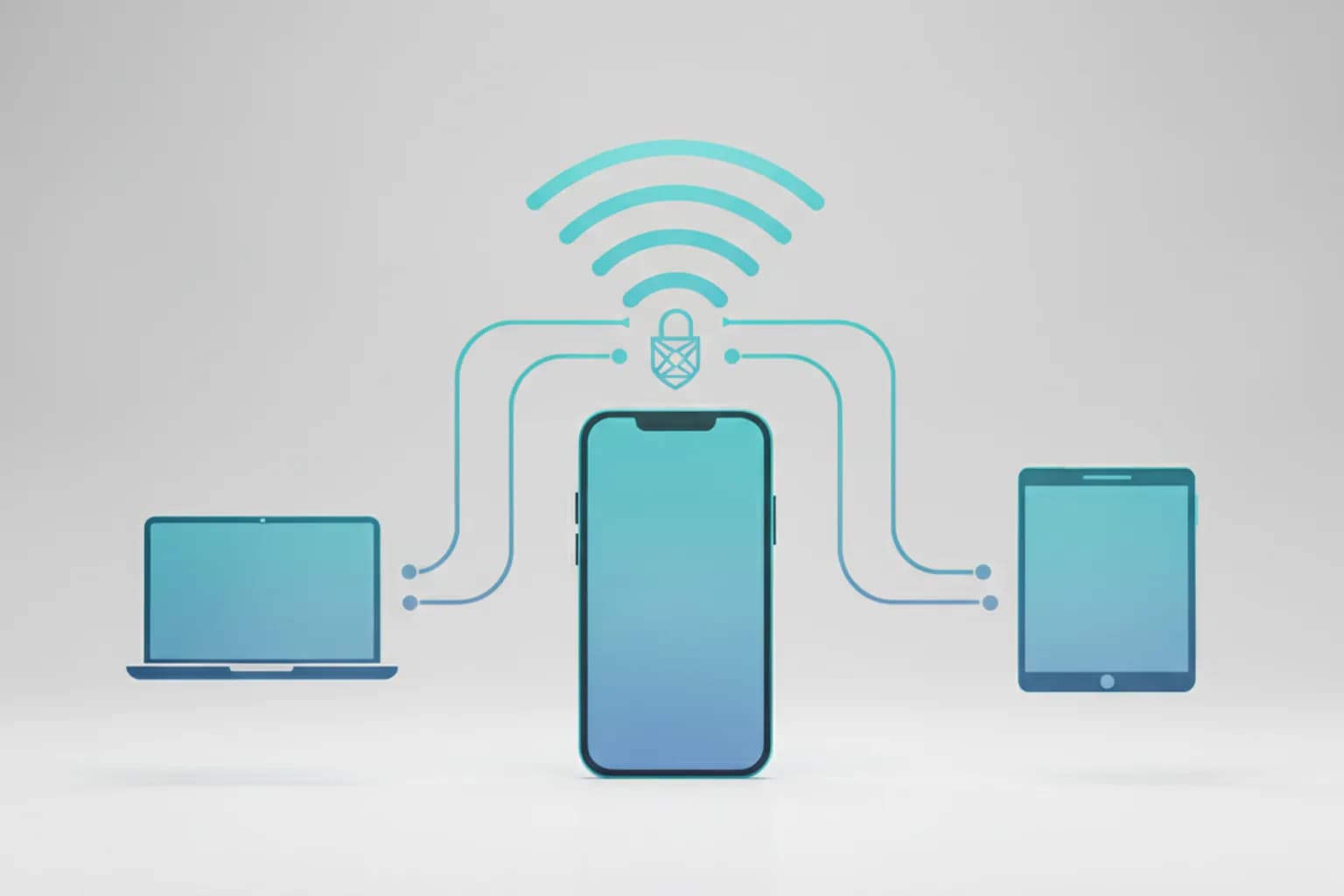
In short: Sharing a VPN from your phone to a computer directly through a Wi-Fi hotspot usually won't work: both Android and iPhone route tethered traffic outside the VPN tunnel by default. The reason is technical — the operating system doesn't send connected devices' traffic through the virtual VPN interface. The most reliable way to protect a second device is to run the VPN on that device itself. To cover every device at home at once, set up the VPN on your router. Dedicated relay apps can share a VPN over Wi-Fi, but they don't work on every firmware and need careful vetting. Below we explain why it works this way and what to do in practice.
Can you share a VPN from your phone to a computer?
You usually can't share VPN-protected traffic from your phone to a computer through the built-in hotspot: the connected laptop gets your phone's internet, but without VPN encryption. When you turn on a VPN on your phone, the tunnel only protects that phone's own traffic. The hotspot (tethering) shares the raw carrier or Wi-Fi connection, not the encrypted channel.
This isn't a misconfiguration — it's how traffic routing is built in mobile operating systems. So the real question behind "how to share a VPN" is different: how to make sure the second device is also protected by a VPN. There are several ways, and the simplest is to install the VPN not on the sharing phone but on the device that needs protection. If you're just setting up a VPN on your phone, start with the step-by-step guides — setting up a VPN on Android and setting up a VPN on iPhone.
Why doesn't a hotspot route traffic through the VPN?
A hotspot doesn't route traffic through the VPN because the mobile OS doesn't build a route for tethering through the virtual VPN interface. When a VPN app brings up a tunnel, the system creates a separate virtual network adapter (a tun interface) and sends the phone's app traffic into it. Traffic from devices connected over Wi-Fi to the hotspot follows a different, direct route that bypasses that adapter.
Put simply, the VPN and the hotspot on your phone work like two parallel roads: one is protected, the other isn't, and by default they never meet. To force tethered traffic into the tunnel, you'd have to manually add a network route at the system level, and that access is normally locked without root on Android or configuration profiles on iPhone. That's why "just turn on the VPN and share Wi-Fi" doesn't work, and you need the workarounds — all of them legal — described below.
Method 1. Turn on the VPN on the receiving device
The most reliable way to protect a computer or tablet is to install the VPN directly on it, rather than sharing it from your phone. Then the device brings up its own tunnel, and its traffic is encrypted regardless of how it got online — through the phone's hotspot, home Wi-Fi, or a cable.
This option is simpler and more stable than any sharing scheme: no third-party apps, root access, or manual route editing. VPN clients exist for Windows, macOS, Linux, Android, and iOS, and a single subscription usually lets you connect several devices. Just install the service's app on the computer, sign in, and turn on protection. For example, LiMP VPN runs on iOS and Android and lets you keep protection on several devices under one subscription; see plans on the LiMP VPN pricing page.
When to choose this method: almost always, if you have access to the receiving device and can install an app on it. Sharing from a phone is only needed where you can't install a VPN on the second device — for example, a set-top box or a TV without a suitable client.
Method 2. Set up a VPN on your router
If you need to protect every device at home, set up the VPN on your router rather than your phone. The tunnel is then established on the router itself, and all traffic from connected devices — computers, TVs, set-top boxes, smart speakers — automatically goes through the VPN. Nothing needs to be shared from your phone in this case.
You'll need a router that supports a VPN client (for example, firmware that can run WireGuard or OpenVPN). The upside is that one device protects the entire network, including devices with no VPN app of their own. The downsides are that you need a compatible router and a one-time setup, and speed is limited by its processor. A detailed walkthrough with router selection and step-by-step setup is in our guide on how to protect your home network with a VPN.
Method 3. Apps that share a VPN over Wi-Fi
There are dedicated relay apps that run a proxy or a local gateway on the phone and route traffic from devices connected to its hotspot through the VPN. They partly solve the "share a VPN" problem where you can't install a client on the receiving device itself.
But this method comes with serious caveats worth keeping in mind:
- They don't work everywhere. Many such apps require root on Android or work only with certain firmware and OS versions; on iPhone, without configuration profiles, they're usually unavailable.
- A matter of trust. A relay passes all your traffic through itself, so only install vetted apps from official stores with a transparent reputation — a shady utility can itself become a source of data leaks.
- Instability. The connection can drop when the network changes or the system updates, and setup is harder than simply installing a VPN on the device you need.
Bottom line: a relay app is a fallback for cases where methods 1 and 2 aren't available. If you can install a regular VPN client on the receiving device, that's the more reliable choice. Before installing any VPN app, it helps to know the signs of unsafe software — see our breakdown of how to spot a malicious VPN app.
How to share a VPN from Android: step by step
On Android, the most reliable approach is not to share the VPN from your phone but to enable protection on the receiving device; if that's impossible, use a relay app. The general order of steps for the relay scenario looks like this.
- Install a VPN on the phone. Install your VPN service's app and make sure the tunnel comes up and works.
- Install a sharing app. Install a vetted relay from an official store that can split the VPN connection over Wi-Fi.
- Turn on the VPN. Activate the VPN on the phone and wait for the connection to become active.
- Start sharing from the app. In the relay, turn on the hotspot from within the app itself — that way traffic goes through the tunnel rather than around it.
- Connect the computer. On the laptop, join the created Wi-Fi network and enter the password.
- Verify protection. On the computer, open an IP-checking service and confirm the VPN server's address is shown, not your real IP.
If the check shows your real IP, traffic is going around the tunnel — in that case it's easier to fall back to method 1 and install the VPN directly on the computer. How to make sure protection actually works is described in detail in our article on how to check that your VPN is working.
How to share a VPN from an iPhone?
On iPhone you also can't share VPN traffic through Personal Hotspot with built-in tools: connected devices get regular internet, not the protected tunnel. iOS doesn't let you route Personal Hotspot traffic through a VPN without special configuration profiles, and third-party relay apps are heavily restricted by system rules on iPhone.
So the same rule applies on Apple devices: to protect a computer or tablet, turn on the VPN on that device itself. There's a dedicated VPN client for Mac, and an iPad is protected by its own app just like an iPhone. And if you need to cover the whole home network at once, go back to the router option. That approach is more reliable and doesn't depend on iOS limitations.
Comparing the methods: what to choose
The choice depends on whether you have access to the receiving device and whether you need to protect one device or the whole network. Here's a summary.
| Method | When it fits | Difficulty |
|---|---|---|
| VPN on the receiving device | You have access to the computer or tablet and can install an app | Low, recommended |
| VPN on the router | You need to protect every home device at once | Medium, one-time setup |
| Relay app | You can't install a VPN client on the device | High, doesn't work everywhere |
As you can see, in most cases it's simpler and more reliable not to share a VPN from your phone but to run it directly on the device you need, or on the router. Sharing via an app remains a niche solution for special cases.
Sharing a VPN and security: what to watch for
The main risk when sharing a VPN is a false sense of protection, when some devices actually go online without encryption. So after any setup it's important to verify that the protected device really shows the VPN server's IP rather than your real address, and that there's no DNS leak.
Here a VPN acts as a privacy and security tool: it encrypts traffic and hides your real IP from websites and the network owner, which is especially valuable on public Wi-Fi. When choosing a scheme, prioritize reliability: a native VPN client on the device is almost always preferable to complex sharing chains, where it's easier to misconfigure something. And install VPN apps only from official sources — our guide on how to download a VPN safely explains where to get them.
Frequently asked questions
Can you share a VPN from your phone to a computer?
Directly through the built-in hotspot — usually no: the connected computer gets your phone's internet without VPN encryption. It's more reliable to turn on the VPN on the computer itself, set up a VPN on your router, or use a dedicated relay app on the phone. The simplest option is to install the VPN right on the device that needs protection.
Why doesn't a hotspot work through the VPN?
Because the mobile system doesn't route tethering traffic into the virtual VPN interface. The VPN protects only the phone's own traffic, while devices connected to the hotspot follow a direct route that bypasses the tunnel. To change this you need either a relay app, a VPN on the router, or a VPN on the device itself.
How do you share a VPN from an iPhone?
The built-in Personal Hotspot on iPhone doesn't pass traffic through the VPN — connected devices get regular internet. To protect a computer or tablet, turn on the VPN on it directly (there are dedicated apps for Mac and iPad). To protect the whole home network, set up a VPN on your router.
Do you need root to share a VPN on Android?
Most relay apps that route hotspot traffic through a VPN often need root or compatible firmware on Android. Without that, it's simpler and safer to install a VPN client directly on the receiving device or set up a VPN on your router.
Is it safe to share a VPN via third-party apps?
Only if it's a vetted app from an official store: a relay passes all your traffic through itself, so a shady utility can itself become a source of leaks. After setup, be sure to check your IP and confirm there's no DNS leak. Overall, a native VPN client on the device is more reliable than any sharing scheme.