

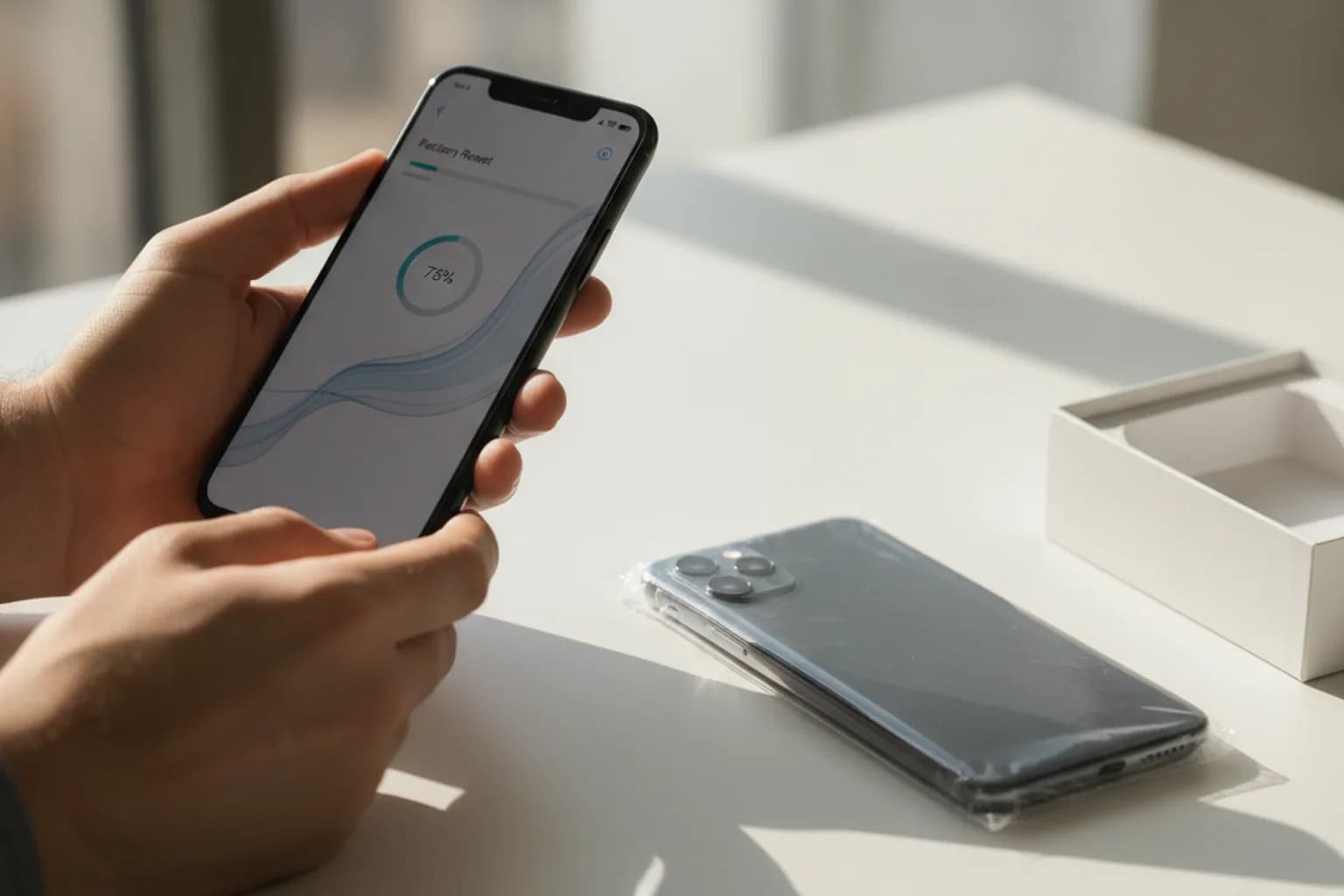
In short: Selling a phone takes more than tapping «Reset». First back it up, then sign out of Apple ID and turn off Find My (on Android, remove your Google account) — otherwise activation lock kicks in and the new owner can't even switch it on. Pull the SIM, delete the eSIM and remove any memory card. Only then run a full factory reset. On modern encrypted phones the reset destroys the encryption key, so the data becomes unreadable and can't be recovered.
Why «just delete everything» isn't enough
Within a couple of years a phone holds more personal data than most home computers: chats, photos, payment cards in the wallet, saved passwords, work email, location history. When the device goes to a new owner or a trade-in counter, none of that should travel with it. Yet ordinary «deleting» through the gallery or a file manager doesn't truly erase anything — the system just marks the space as free, and the data physically stays in memory until it gets overwritten.
The good news is that modern phones solve this with encryption. iPhones have encrypted storage by default since the earliest iOS versions, and Android encrypts by default from version 6.0 onward. The encryption key lives in a secure hardware module, and when you run a full factory reset the device destroys that key. After that, the entire data set turns into meaningless ciphertext that can't be decrypted even if someone physically pulls the memory chip. This is called cryptographic erasure, and on an encrypted device it's more reliable than the multiple «junk» overwrites left over from the hard-drive era.
The catch is different: a reset deliberately does NOT switch off anti-theft protection. Apple's Activation Lock and Google's Factory Reset Protection (FRP) survive a reset on purpose — so a thief can't wipe a stolen phone and resell it. If you erase the device but don't sign out of your account, it reboots and demands your Apple ID or Google password, and the buyer gets a brick. That's why the order of steps matters more than the reset button itself. If a phone was actually stolen rather than sold, that's a separate scenario with its own steps — see the guide on what to do if your phone is stolen.
Step 1. Back up and move your data
A reset is irreversible: afterward there's nowhere to recover photos, contacts and chats from unless you saved a copy first. Do this before anything else.
- iPhone: Settings → your name → iCloud → «iCloud Backup» → «Back Up Now», or a full backup to a computer. When moving to a new iPhone, the direct device-to-device transfer is easiest.
- Android: Settings → «Google» → «Backup» for settings, contacts and apps; sync photos and videos separately to Google Photos or copy them to a computer. Messengers such as Telegram and WhatsApp keep their own chat backups — check those separately.
- Confirm the backup actually finished and the data is visible in the cloud or on the new device before you erase anything.
One note about photos: gallery shots store GPS coordinates in their EXIF metadata. If you attach photos of the phone to a sale listing, strip those geotags so you don't reveal your address — the how-to is in how to remove EXIF metadata from photos.
Step 2. Detach accounts and remove locks — the most important step
This is the stage people skip most often, then end up with a locked phone and an unhappy buyer. Do it strictly BEFORE the reset.
On iPhone: open Settings → your name → «Find My» → «Find My iPhone» and turn it off (your Apple ID password is required). Then go back to Settings → your name, scroll down and tap «Sign Out». This lifts Activation Lock and unlinks the device from your account.
On Android: open Settings → «Accounts» (or «Passwords & accounts») → pick the Google account → «Remove account». Removing the account before the reset is exactly what disables Factory Reset Protection. If you just reset from recovery mode without removing the account, FRP triggers instead and locks the phone. While you're there, remove the screen lock (PIN, pattern, fingerprint) to make setup easier for the new owner.
Before signing out of your accounts, make sure all your passwords are stored somewhere reliable rather than «only in the phone». If you don't yet use a dedicated vault, start with our password manager security guide — otherwise you risk losing access to services tied to the old device.
Step 3. Remove payment cards, eSIM, SIM and memory card
A full reset wipes the built-in storage, but a few things it won't touch — remove those by hand.
- Payment cards: delete cards from Apple Pay / Wallet and Google Wallet. It's safer to do this through your account (iCloud or Google) so the card is detached server-side, not just on the device.
- eSIM: an embedded SIM can't be pulled out physically and may remain after a reset. Transfer the profile to the new phone or delete it and re-issue it with your carrier. For more on embedded SIMs and their privacy trade-offs, see are eSIMs safe: privacy and security.
- Physical SIM: simply take it out of the tray before handing over the phone — it holds your contacts and the link to your number.
- microSD card: a factory reset doesn't touch it. Remove the card, or if you leave it with the buyer, format it separately.
Step 4. Run the full factory reset
With the backup done, accounts detached, and SIM and memory card removed, you can erase the device.
- iPhone: Settings → «General» → «Transfer or Reset iPhone» → «Erase All Content and Settings». Enter your device passcode and Apple ID if prompted.
- Android: the path varies slightly by manufacturer, but it's generally Settings → «System» → «Reset» → «Erase all data (factory reset)». On Samsung, Xiaomi, realme or vivo the section may be called «General management» or «Additional settings» → «Reset».
- Wait until the phone reboots and shows the initial setup screen («Hello» / language picker). If it doesn't ask for your Apple ID or Google password, activation lock was cleared correctly.
What a reset erases and what stays
| Item | Factory reset | Do it manually |
|---|---|---|
| Apps, photos, messages, saved passwords | Erased (encryption key destroyed) | Nothing — that's the goal |
| Apple ID and Activation Lock (iPhone) | Survives | Sign out of Apple ID and turn off Find My before reset |
| Google account and FRP (Android) | Survives | Remove the Google account before reset |
| Cards in Apple Pay / Google Wallet | Detached on device, but better removed in account | Delete cards via iCloud / Google |
| eSIM | May remain | Transfer or delete the profile, re-issue with carrier |
| Physical SIM and microSD card | Not affected | Remove before handing over the phone |
Pre-sale checklist
- Back up and confirm the data is available on the new device or in the cloud.
- Delete payment cards from Apple Pay / Google Wallet through your account.
- Turn off Find My and sign out of Apple ID — or remove the Google account on Android.
- Remove the screen lock, pull the SIM and memory card, delete or transfer the eSIM.
- Run «Erase All Content and Settings» (iPhone) or «Erase all data» (Android).
- Wait for the initial setup screen and confirm the phone doesn't ask for your account.
- Delete the sale conversation and don't send the buyer receipts with serial numbers and your details.
- On the new phone, set up protection right away — enable two-factor authentication and set up a VPN so your traffic is encrypted from day one.
Old, feature and dead phones
Not every device has a tidy «Erase all» option. If the phone is very old or a basic feature phone, the approach differs. Pull the SIM and memory card — that's usually where the important data lives: contacts, texts, sometimes photos. Feature phones have little built-in storage, but clear it through the reset menu if one exists.
If the phone won't power on but still has to be sold or recycled, the safest way to protect the data is to physically remove and destroy the memory chip, or hand the device to a facility that guarantees media destruction. Remember, too, that the old device may still be attached to your online accounts as «trusted»: after the sale, review the list of active sessions and devices in your email and social accounts. For a full clean-up of your digital footprint, see how to remove your data from the internet.
Frequently asked questions
Can data be recovered after a factory reset?
On a modern encrypted phone — practically no: the reset destroys the encryption key, and the leftover ciphertext can't be decrypted. The risk exists only on older, unencrypted devices. If you're unsure a very old Android is encrypted, turn on encryption in the security settings first, then reset.
Do I need to overwrite the memory with «junk» several times?
No. Multiple overwrites are a habit from the magnetic hard-drive era. On a smartphone's flash memory they're useless and only wear the chip: on an encrypted device a single full reset that destroys the key is enough.
I already sold the phone but forgot to sign out of Apple ID — what now?
Open iCloud.com or the Find My app on another device, locate the sold phone in the list, erase it and remove it from your account. On Android, sign the device out from your Google account page. Then change your account password right away.
Will my cloud photos be deleted if I wipe the phone?
No. A reset erases data only on the device itself. Anything synced to iCloud or Google Photos stays in the cloud and is available on the new phone after you sign in to the same account.
Is it safe to trade in a phone without resetting it?
Don't rely on the shop to wipe it. Back up, detach accounts and run the full reset yourself before you go — that way you control the process and don't depend on anyone else's diligence.
Will saved Wi-Fi passwords and networks be cleared?
Yes, a full reset removes saved Wi-Fi networks and their passwords, Bluetooth pairings and all on-device credentials. Save important passwords in a password manager first, not just in the phone.
Do I need to delete banking apps by hand before selling?
A full reset removes them along with their data, so you don't have to delete them one by one. But signing out and unlinking the device in each app's security settings is worthwhile — some services mark it as trusted for login.