

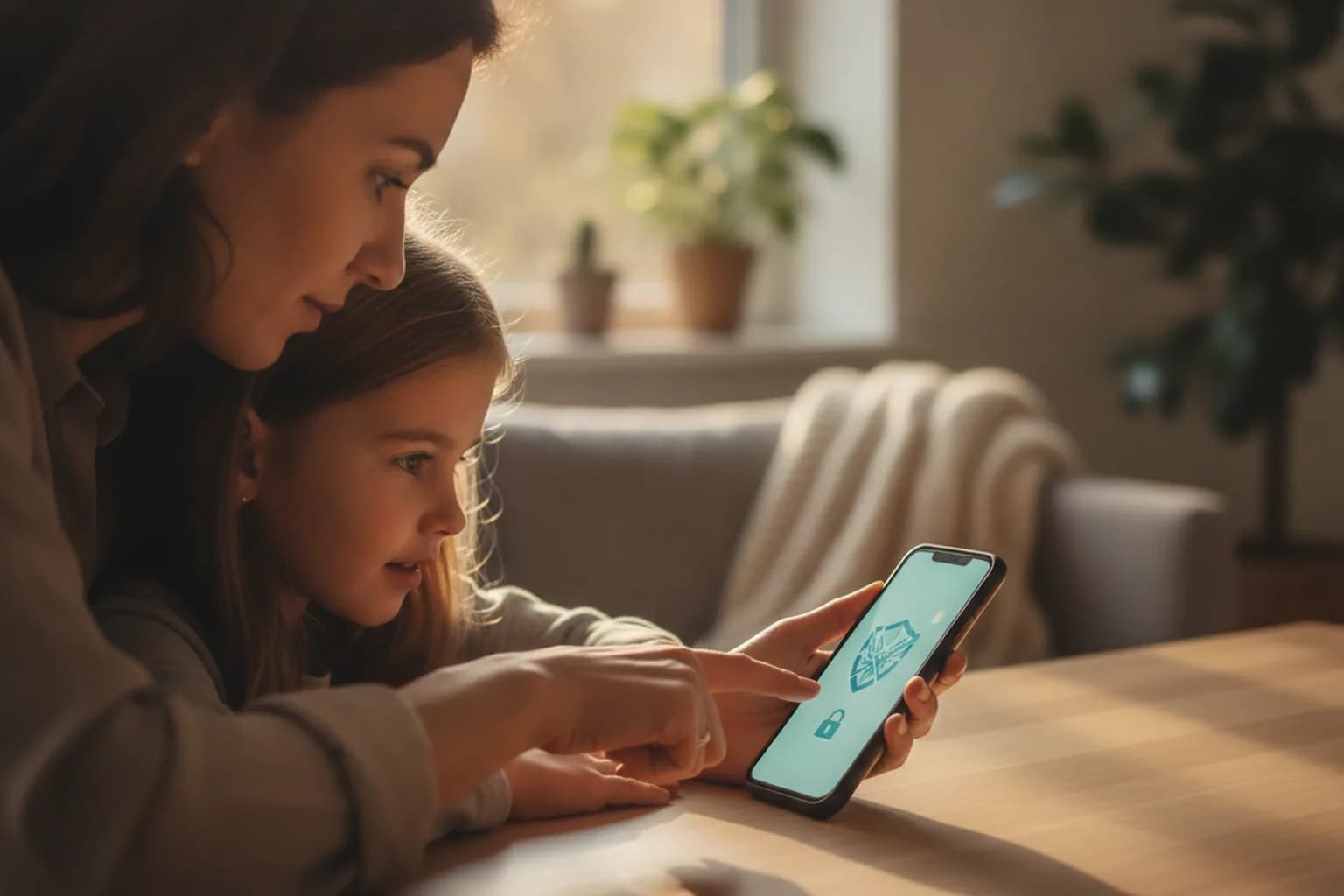
In short: The biggest online risks for children in 2026 aren't «bad websites» — they're contact from strangers, cyberbullying (including deepfake harassment), phishing, and location leaks through open profiles and public Wi-Fi. Solid protection has three layers: parental controls and safe DNS on the device, encrypted traffic on untrusted networks via a VPN, and — most important — an honest conversation about digital habits. A VPN covers the network layer (data interception on open Wi-Fi, IP tracking), but it doesn't replace parental controls and won't solve social problems. Here's how to build all three layers without paranoia.
What online threats really face children in 2026
Parents often picture online danger as «stumbling onto an adult site». In practice, the most common and painful problems aren't about content at all — they're about people and data. Seeing the real picture helps you pick protection that works instead of one that only feels reassuring.
- Unwanted contact and grooming. Adults reach children through game chats, comments and direct messages, build trust, and slowly coax out personal details or photos.
- Cyberbullying and deepfake harassment. Alongside familiar insults and threats, a newer form has appeared: a child's face pasted by an AI model into a humiliating clip or image. That content spreads fast and hits harder than ordinary messages.
- Phishing and «too-good» offers. Free skins, in-game currency, a phone giveaway — classic bait to make a child enter a parent's card details or an account password.
- Location leaks. Place tags in posts, photo metadata, and always-on app location let strangers work out where a child lives, studies and hangs out.
- Fake and malicious apps. Disguised as a game or a «booster», an app can quietly harvest data or push aggressive ads.
- Interception on open networks. On unencrypted Wi-Fi in a café, mall or school, someone on the same network can see part of the traffic and serve fake pages.
No single tool closes all of these at once: grooming and bullying are about communication and trust, phishing is about attention, and interception is about encryption. That's why protection is built in layers rather than resting on one «magic button».
Location and the digital footprint: the weak link
A child's digital footprint is everything that can be learned from open sources: public profiles, geo-tagged photos, usernames reused across services, and data apps collect in the background. Individually these crumbs look harmless, but together they form a detailed portrait: neighborhood, school, daily routine, interests.
Location plays an outsized role. Many apps ask for location access by default, and phone cameras write coordinates into photo metadata. If a child posts a photo «right now from the yard», an address is easy to infer. So the basics are: turn off geo-tags in social apps, limit app location access to «while using», and explain why sharing your real-time whereabouts is a bad idea.
The network layer feeds the footprint too. A visible IP address reveals an approximate city and provider, and ad networks tie it to interests. A VPN swaps the visible IP and encrypts the channel, so sites and others on the network find it harder to pin activity to one place. It doesn't make a child invisible, but it removes one easy tracking path. For the fuller picture, see our guide to what a VPN actually protects against.
Parental controls: what they can and can't do
Parental controls are built-in systems (Screen Time on iOS, Google Family Link on Android) and standalone apps that help manage a child's device. They form the main protective layer, but they have clear limits worth knowing up front.
What they do well: cap screen time and downtime, filter age-rated content in the app store and browser, block new installs without approval, show activity reports and — if you choose — device location. For younger children that's enough to set sensible boundaries.
What they can't do: spot manipulation in a chat, tell a real friend from an adult posing as a peer, stop bullying, or protect traffic on someone else's Wi-Fi. Teens also learn to bypass restrictions quickly, and blanket surveillance erodes trust and pushes a child toward a «second phone» or anonymous accounts. Treat parental controls as guardrails, not a substitute for attention and conversation.
A good habit is to enable safe DNS on the device (a family filtering resolver) that blocks most phishing and adult domains at the network level. It's a quiet layer that keeps working even where built-in controls fall short.
Public and school Wi-Fi: where a VPN genuinely helps
Children connect to open networks more often than adults do: school, clubs, cafés, malls, transit, libraries. Many of these networks have no password, or one shared password for everyone. In that setting, someone on the same network can intercept unencrypted traffic, serve fake login pages, and harvest data.
This is where a VPN earns its place. It wraps all device traffic in an encrypted tunnel, so even on an unsafe network a child's data stays unreadable to Wi-Fi neighbors. It also hides the real IP and makes it harder for sites to determine precise location. To be honest about it: a VPN protects the connection, not behavior — it doesn't cancel parental controls, block bullying, or replace antivirus.
A practical family setup is a lightweight VPN app on the child's phone, switched on whenever they join any outside network. If you want one affordable plan across the family's devices, see the LiMP plans — cheaper than a separate service per gadget. And if you're still comparing options, our guide on how to choose a VPN in 2026 walks through what actually matters.
What protects against what: a tool map
Different threats are closed by different tools. This map shows which tool owns each problem and where a VPN fits versus where it's useless.
| Threat | Main protective tool | Does a VPN help? |
|---|---|---|
| Data interception on open Wi-Fi | VPN + HTTPS | Yes, directly |
| Tracking by IP and location | VPN + geo-tags off | Yes, partly |
| Adult content and unsafe sites | Safe DNS + parental controls | No, needs a filter |
| Grooming and unwanted contact | Conversation + profile privacy | No |
| Cyberbullying and deepfakes | Conversation + reports and blocks | No |
| Phishing and password theft | Attention + 2FA + password manager | Indirectly |
| Malicious apps | Official app stores only | No |
Setting up safety on your child's phone
You can assemble the basics in one evening without paying for pricey services. The order is roughly the same on iPhone and Android; only the menu names differ.
On iPhone: turn on Screen Time and set limits and content filters, restrict app location access under Settings → Privacy, and stop photos from recording location. Add the child to Family Sharing so purchases and installs need approval.
On Android: install Google Family Link, set content filters and time limits, review app permissions, and remove location access from apps that don't need it. Allow installs from Google Play only.
It's also worth enabling safe, filtering DNS and confirming it isn't leaking — our guide on testing and fixing DNS leaks shows how to check that your queries actually go where you think.
Different ages, different approach
The same settings don't fit both a preschooler and a teenager. Protection should grow up with the child, or it either gets in the way or stops working.
- Preschool and early school. Maximum parental control and app allow-lists, minimal independence. The device is used near an adult, accounts are family ones.
- Middle school. Own social apps and chats appear, and the child joins outside networks. This is when you add a VPN on the phone, private profiles, safe DNS, and the first talks about phishing and privacy.
- Teens. Blanket control now backfires. The emphasis shifts to trust and awareness: a password manager, 2FA, a critical eye for «great deal» links, and understanding why a VPN matters.
An 8-step checklist for parents
Walk through the list together with your child so they grasp the logic instead of feeling watched.
- Turn on parental controls (Screen Time or Family Link) and set sensible limits, not a total ban.
- Configure safe DNS on the device or router to block phishing and adult domains at the network level.
- Turn off geo-tags in social apps and limit app access to location.
- Put a VPN on the child's phone and switch it on for any outside or open network.
- Make social profiles private and remove address, school and phone number from them.
- Enable two-factor authentication on email and gaming accounts.
- Agree on a rule: no clicking «giveaway» links and no entering card details without an adult.
- Ask regularly what's new and whether there were any unpleasant messages — without blame.
How to talk to your child about safety
Technical settings only work when a child understands the point of them. Total control with no explanation backfires: a teen finds workarounds and stops sharing problems. Building habits and trust is far more reliable.
Explain it plainly: personal data — address, school, phone, passwords — is never shared online with anyone, not even a «friend» they've never met in person. Agree that any unpleasant message, threat, or strange request can be brought to you without punishment — that removes the fear and lets you step in early. Address deepfakes specifically: if a child sees a fake clip of themselves or someone else, it isn't their fault, and the right move is to save evidence, report it in the service, and come to an adult. This conversation protects better than any filter because it works where technology can't — in communication.
If your child uses AI tools for schoolwork, explain which data shouldn't go into them — we cover this in our guide on protecting your data with ChatGPT and other AI chatbots.
Frequently asked questions
At what age should I set up a VPN and parental controls?
Parental controls make sense from a child's very first personal device, even a preschooler's. A VPN becomes relevant once a child starts joining outside networks — usually early-to-middle school. Judge by usage scenarios, not by age alone.
Does a VPN block adult sites on its own?
No. An ordinary VPN encrypts traffic and changes the IP, but it doesn't filter content. To block adult and dangerous domains you need safe DNS or a content filter in parental controls — a VPN works alongside them, not instead of them.
Will a VPN slow down my child's internet?
A quality VPN on a nearby server barely affects everyday browsing and video. Noticeable slowdowns usually come from an overloaded free service or a very distant server.
Should I secretly read my child's messages?
Covert surveillance almost always surfaces and destroys trust. It's more effective to agree on transparent rules and open access for younger kids, then widen privacy with age. The goal is for the child to bring you a problem, not hide it.
My child uses a shared or school tablet. What now?
You can't set full controls on a device you don't own. At minimum, teach the child not to sign into personal accounts on other people's devices, to log out of sessions, avoid saving passwords, and do anything important only on their own gadget.
Is a free VPN fine for a child?
Treat free VPNs with caution: some fund themselves by collecting and selling data, which is especially undesirable on a child's device. For a child, pick an affordable, transparent service with a clear no-logs policy — see our free vs paid comparison.
Does a VPN help against cyberbullying?
Not directly. Bullying is about communication and is handled with blocks, in-service reports, and talking to adults. A VPN protects data and the connection, not the content of a conversation.